Difference between revisions of "mosCura:Recipe BOM"
Jump to navigation
Jump to search
MartinHeide (talk | contribs) |
MartinHeide (talk | contribs) |
||
| Line 15: | Line 15: | ||
</gallery> | </gallery> | ||
| − | ==Select BOM== | + | ==Select BOM config== |
#Click the icon next to "Select..." | #Click the icon next to "Select..." | ||
#Select the desired BOM | #Select the desired BOM | ||
| Line 40: | Line 40: | ||
File:MosCura_RecipeBOM_7.png|Verify the result | File:MosCura_RecipeBOM_7.png|Verify the result | ||
</gallery> | </gallery> | ||
| + | |||
| + | ==Test BOM== | ||
| + | #In the left menu, select Test -> BOM | ||
| + | #Click the icon next to "Select..." | ||
| + | #Select the desired BOM | ||
| + | #Click change | ||
| + | #Optional. Update the Test value | ||
| + | #Click test | ||
| + | #Validate the result | ||
| + | <gallery> | ||
| + | File:MosCura_RecipeBOM_10.png|In the left menu, select Test -> BOM | ||
| + | File:MosCura_RecipeBOM_8.png|Click the icon next to "Select..." | ||
| + | File:MosCura_RecipeBOM_9.png|Select the desired BOM | ||
| + | File:MosCura_RecipeBOM_11.png|Click Test and validate result | ||
| + | </gallery> | ||
| + | |||
| + | ==Test Recipe with BOM activated== | ||
| + | [[mosCura:Recipe_Test|Test recipe]]<br /> | ||
Revision as of 12:41, 3 September 2019
Contents
BOM
The BOM (Build Of Material) selection in mosCura is an option to scan the BOM directly into the mosCura recipe request.
mosCura will then, based on the config take specific characters, from the BOM, concatenate them, and use them as recipe name in the recipe request.
BOM Config
Before the BOM selection is available, you need to create and configure the BOM
Create BOM
- Click the plus sign in the top right hand corner
- Fill out the form
- Click save

Recipe BOM Create
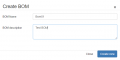
Recipe BOM form


Select BOM config
- Click the icon next to "Select..."
- Select the desired BOM
- Click change
Click the icon next to "Select..."
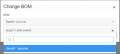
Select the desired BOM


Configure
- Optional, If more than one BOM configuration is needed, please enter the search criteria as SQL Like operator. E.g. AB%
- Enter the code to use
- Click split
- Select the value(s) needed, and enter from 1 to 50 to order the values
- Click Test
- Verify the result
- Click save
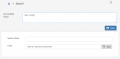
Enter the code to use
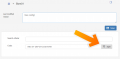
Click split
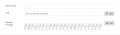
Select the value(s)
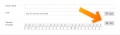
Click Test
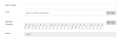
Verify the result


Test BOM
- In the left menu, select Test -> BOM
- Click the icon next to "Select..."
- Select the desired BOM
- Click change
- Optional. Update the Test value
- Click test
- Validate the result
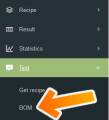
In the left menu, select Test -> BOM
Click the icon next to "Select..."
Select the desired BOM

Click Test and validate result


