mosCura:Configurator Items
Jump to navigation
Jump to search
Create
- To create a new Item either in the Item Group, you have to click the button on the right side in the panel of the Item Group and press “+ New Item”
- When you have clicked the “+ New Item”, a new window will appear with the required fields of the Item. In this window, there is also the option to create a number of copies for the created item
- When the Item is created, it will be located inside the panel of the Item Group

Press "Create new Item"

Fill in inputs and press "Create"

Created Item


Update
To update an existing Item, you can write directly in the panel, where the Item is located, and press “Update” in the right top corner of the panel.
Moreover, when a change happened in any of the Item inputs, a vertical colored line will be displayed in the panel, in order to keep track of in which item there are unsaved changes.
- You can update 1 or many Items simultaneously
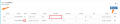
Change the values and press "Update"

Create Copy
In the mosCura Configurator there is also an option to create a number of copies of an existing Item.
- To create the copy, extend the dropdown button at the right side of the Item and press “Create Item Copy”
- When you have clicked the button, a new window will pop up. Now you have to fill in the required inputs and select the number of the copies you want to create

Press "Create Item Copy"

Fill in all the inputs and press "Create"

Created copies of the Item


Delete
- To delete an item, extend the dropdown button on the right side of the Item in the panel where it is located, and press “Delete”
- When you have clicked the button, a confirmation message will be shown
- Press “OK” to continue the process or “Cancel” to cancel it

Press Delete

Press "Ok" to confirm the delete process


