TestIT:Guide
Contents
9. Guide

The guide service allows you to see the guide in setup. In the first section, a guide workflow is shown.
An overview of the guide:

Options:
 Home - go back to the home page
 Add guide - add a new guide


9.1 Guide workflow
The figure below shows the general guide workflow.
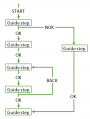
Workflow

Explanation of the steps:
| Steps | |
|---|---|
| START | Starting a guide can be done in two ways; - Internal - External |
| GUIDE STEP | There are different types of guide steps |
| OK | The OK step can be any step in the guide. The action can be: - OK button pressed - OK I/O set |
| NOK | The NOK step can be any step in the guide. The action can be: - NOK button pressed - NOK I/O set - Next validation fails |
| BACK | The back step can be any step in the guide. The action will be a Back button pressed. |
| GUIDE STEP (last) | The OK of the last guide step, depends on which guide is running. - Internal is going to close after the last step. Set the OK step to a guide number, NOT in the guide. - External is going to start over after the last step. Set the OK step to the appropriate guide step. - External is going to close after the last step. Set the OK step to a guide which tells the user to close the guide. |
9.1.1 Guide step flow
The figure shows an overview of a guide step flow, like where the validation of the workflow is:
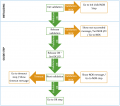
Guide step flow

Explanation of the flow:
| Flow | |
|---|---|
| INIT VALIDATION | Before opening the guide step, the init validation is running. - If the validation is OK, the guide step will open - If the validation is not ok, the init validation NOK step will be opened |
| GUIDE STEP | The actual guide step is opened |
| RELEASE VALIDATION | The release validation is running while the step is open. - If the validation is OK, the OK button will be released - If a next release I/O is selected, it will be set on validation OK - If a validation success message is set, this will be shown on validation OK |
| NEXT VALIDATION | If OK button is pressed or OK I/O set, the next validation will be running - If a timer is set, it will start - If the validation is OK, the next guide step will open - If not, the validation will keep running for the timeout period - If the timeout runs out, the timeout message will be shown or the timeout step will be opened |
9.2 Add guide
- Press Add guide
- Write a guide name (maximum 100 characters)
- Write a description (optional)
- Press OK – or Cancel and the new guide will not be created
After the guide is created, it will be shown in the guide overview.
9.3 The guides
When a guide is selected, it will give an overview with details, and there are some options to choose from:
- Run external
- Edit guide
- Copy guide
- Delete guide
- Language
Run external:
- Press this button and it will run a guide external, which means that it will show how the guide will run in the production. When a guide is running it is using the configurated steps, which is added to the wanted guide.
Edit guide:
- Select the wanted guide
- Press Edit
- Make the wanted changes (see some options below)
- Press Save – or Close and the changes will not be saved
Options in edit:
- Description – Write a description off the guide
- Add step – Steps to the test
Copy guide:
- Select the wanted guide
- Press Copy
- Write the new guide name
- Press OK – or Cancel and the copy will not be saved
Delete guide:
- Select the wanted guide
- Press Delete
- A box will be shown; press Yes to accept or No if not
Language – Add, edit, and delete:
Override the standard language, and add culture specific text and images – and still keep the functionality.
- Select the wanted guide
- Press Language; here it is possible to see the active language(s)
- Now there are some options:
- Add:
- Select Create on the wanted language
- Fill in the empty areas; what the new “name” is
- Press OK - or Cancel and the language will not be saved
- Edit:
- Select edit on the wanted language
- Make the wanted changes
- Press OK - or Cancel and the changes will not be saved
- Delete:
- Select Edit on the wanted language
- Press Delete and the language is deleted
- Add:
