Difference between revisions of "mosCura:Recipe Config Multiselector"
Jump to navigation
Jump to search
MartinHeide (talk | contribs) |
MartinHeide (talk | contribs) |
||
| Line 17: | Line 17: | ||
File:MosCura_RecipeMultiTag_4.png|Multi selector value list | File:MosCura_RecipeMultiTag_4.png|Multi selector value list | ||
File:MosCura_RecipeMultiTag_5.png|Edit or delete value | File:MosCura_RecipeMultiTag_5.png|Edit or delete value | ||
| + | File:MosCura_RecipeConfig_Multi_None.png|If no tag are set as multi tag | ||
</gallery> | </gallery> | ||
| Line 28: | Line 29: | ||
File:MosCura_RecipeConfig_Multi_Return.png|Multi tag as it will return in recipe | File:MosCura_RecipeConfig_Multi_Return.png|Multi tag as it will return in recipe | ||
File:MosCura_RecipeConfig_Multi_2.png|Multi tag list | File:MosCura_RecipeConfig_Multi_2.png|Multi tag list | ||
| − | |||
| − | |||
</gallery> | </gallery> | ||
[[mosCura:Recipe_Config|Back to recipe config]]<br /> | [[mosCura:Recipe_Config|Back to recipe config]]<br /> | ||
Latest revision as of 13:37, 3 September 2019
The multi tag selector, can be used to configure on tag to contain several pieces of information. You can select and de-select each different tag values.
You will need a tag configured as Multi tag

Tag configured ad Multi selector tag

Edit values for Multi selector tags
- Go to Recipe -> Multi values. Only machine administrators
- Select the tag
- Click the Add button
- Enter Description and Value
- Click Create new
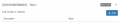
Add value to Multi selector tag
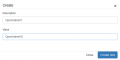
Create value to Multi selector tag
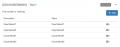
Multi selector value list
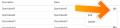
Edit or delete value

If no tag are set as multi tag


Use Multi selector tag
- Go to the desired recipe
- Go to the Multi selector tag
- Select or de-select the values
- Save the recipe

Multi tag values

Multi tag as it will return in recipe
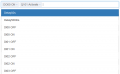
Multi tag list


