Difference between revisions of "TestIT:Move License"
Jump to navigation
Jump to search
MartinHeide (talk | contribs) (Created page with "#Go to the config area #Go to the Application config #Open the License information #Select License handling, then click Move licensen #Select location to store the Move licens...") |
MartinHeide (talk | contribs) |
||
| Line 11: | Line 11: | ||
File:testit_config_pic4.png|Go to the Application config | File:testit_config_pic4.png|Go to the Application config | ||
File:TestIT_Config_License_01.png|Open the License information | File:TestIT_Config_License_01.png|Open the License information | ||
| − | File:TestIT_Config_License_02.png|Select License handling, then click Move | + | File:TestIT_Config_License_02.png|Select License handling, then click Move license |
File:TestIT_Config_License_03.png|Select location to store the Move license file. E.g C:\Nolek\License | File:TestIT_Config_License_03.png|Select location to store the Move license file. E.g C:\Nolek\License | ||
File:TestIT_Config_License_04.png|After this, TestIT will be with out license. | File:TestIT_Config_License_04.png|After this, TestIT will be with out license. | ||
Revision as of 13:39, 9 September 2019
- Go to the config area
- Go to the Application config
- Open the License information
- Select License handling, then click Move licensen
- Select location to store the Move license file. E.g C:\Nolek\License
- After this, TestIT will be with out license.
- Send the moveFile.txt to info@nolek.dk - This will prepare the license for a new installation.

Go to the config area

Go to the Application config

Open the License information
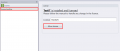
Select License handling, then click Move license

Select location to store the Move license file. E.g C:\Nolek\License

After this, TestIT will be with out license.

Send the moveFile.txt to info@nolek.dk - This will prepare the license for a new installation.


After the license is moved, you can install the license again using the process of Install license
