Difference between revisions of "mosCura:Admin Configuration"
Jump to navigation
Jump to search
| Line 22: | Line 22: | ||
*[[mosCura:Query_Designer|Query Designer]]<br /> | *[[mosCura:Query_Designer|Query Designer]]<br /> | ||
| − | When the configuration is ready, the configured Report under the Report section in the left side menu. | + | When the configuration is ready, the configured Report can be seen under the Report section in the left side menu. |
<gallery> | <gallery> | ||
File:report_machine_lastcreated.png| Last Created Report | File:report_machine_lastcreated.png| Last Created Report | ||
</gallery> | </gallery> | ||
Revision as of 09:14, 9 September 2019
To start the process of report configuration:
- Connect to the machine of your choice.
- Navigate in the left side menu and press "Machine Config"
- Locate the "Shared report" button at bottom of the page and press


Machine config menu

New shared report


When the new shared report has been clicked the page of the Report configuration will open.
The configuration page is split into three steps:
Report Template
Static Info
Query Designer
When the configuration is ready, the configured Report can be seen under the Report section in the left side menu.
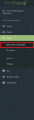
Last Created Report

