Difference between revisions of "mosCura:User Configuration"
Jump to navigation
Jump to search
| Line 7: | Line 7: | ||
File: report_user_config.png|Create Report Menu | File: report_user_config.png|Create Report Menu | ||
</gallery> | </gallery> | ||
| + | |||
| + | |||
| + | When the Create Report has been clicked the page of the Report configuration will open. | ||
| + | |||
| + | The configuration page is split into three steps: | ||
| + | |||
| + | '''Report Template''' | ||
| + | *[[mosCura:User_Report_Template|Report Template]]<br /> | ||
| + | |||
| + | '''Static Info''' | ||
| + | *[[mosCura:Static_Info|Static Info]]<br /> | ||
| + | |||
| + | '''Query Designer''' | ||
| + | *[[mosCura:Query_Designer|Query Designer]]<br /> | ||
| + | |||
| + | When the configuration is ready the mosCura will redirect either to the page that contains the input parameters that the report expects for the filter or direct to the generated Report. | ||
Revision as of 11:49, 6 September 2019
In order to configure a User Report the actions needed are:
- Connect to Machine.
- Navigate in the left side menu and extend the Report and "My Reports"
- Press "Create Report"
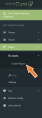
Create Report Menu

When the Create Report has been clicked the page of the Report configuration will open.
The configuration page is split into three steps:
Report Template
Static Info
Query Designer
When the configuration is ready the mosCura will redirect either to the page that contains the input parameters that the report expects for the filter or direct to the generated Report.
