Difference between revisions of "mosCura:Static Info"
Jump to navigation
Jump to search
| Line 7: | Line 7: | ||
<gallery> | <gallery> | ||
| − | File: report_staticInfo_certificationInfo.png| Certification Info | + | File: report_staticInfo_certificationInfo.png| Enter the Certification Info |
| − | File: report_staticInfo_customerInfo.png | Customer Info | + | File: report_staticInfo_customerInfo.png | Enter the Customer Info |
| − | File: report_staticInfo_testInfo.png | Test Info | + | File: report_staticInfo_testInfo.png | Enter the Test Info |
</gallery> | </gallery> | ||
| Line 17: | Line 17: | ||
In addition of this feature we have added two buttons, the first one is to load default values and the second one is to clear all the values from the input fields. | In addition of this feature we have added two buttons, the first one is to load default values and the second one is to clear all the values from the input fields. | ||
<gallery> | <gallery> | ||
| − | File:report_queryDesigner_loadDefault.png|Load Default | + | File:report_queryDesigner_loadDefault.png|By clicking Load Default mosCura loads the values. |
</gallery> | </gallery> | ||
Revision as of 10:25, 9 September 2019
The second step of the configuration is the step that the user type in the information of the Report.
In order to make easier for the user to identify what each input is about we have categorized them into:
- Certification Info
- Customer Info
- Test Info
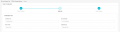
Enter the Certification Info
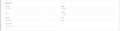
Enter the Customer Info
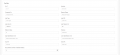
Enter the Test Info


Fill in all the inputs and press Next to continue in the last step of the configuration.
Moreover, on the load of the page, mosCura checks if there are any default values to autofill them. In addition of this feature we have added two buttons, the first one is to load default values and the second one is to clear all the values from the input fields.

By clicking Load Default mosCura loads the values.

