Difference between revisions of "mosCura:Admin Configuration"
Jump to navigation
Jump to search
| (3 intermediate revisions by the same user not shown) | |||
| Line 1: | Line 1: | ||
To start the process of report configuration: | To start the process of report configuration: | ||
| − | |||
| − | |||
| − | |||
<gallery> | <gallery> | ||
| − | File:Report_machine_config.png | Machine config menu | + | File:Report_machine_config.png | Click Machine config in the menu |
| − | File: | + | File:mosCura_Report_Designer_Admin_Handle.png | Press Design report |
</gallery> | </gallery> | ||
| − | When the new shared report has been clicked the page of the Report | + | When the new shared report has been clicked the page of the Report Designer will open with an empty Report where the admin can design a report from the scratch. |
| − | |||
| − | |||
| − | |||
| − | |||
| − | |||
| − | |||
| − | |||
| − | |||
| − | |||
| − | |||
| − | |||
| − | |||
| − | |||
| − | |||
<gallery> | <gallery> | ||
| − | File: | + | File:mosCura_Report_Designer_Admin_EmptyReport.png| New Report |
</gallery> | </gallery> | ||
Latest revision as of 12:16, 31 October 2019
To start the process of report configuration:

Click Machine config in the menu

Press Design report


When the new shared report has been clicked the page of the Report Designer will open with an empty Report where the admin can design a report from the scratch.
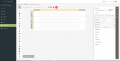
New Report

