Difference between revisions of "mosCura:Dashboard"
Jump to navigation
Jump to search
NolekAdmin (talk | contribs) |
NolekAdmin (talk | contribs) |
||
| Line 50: | Line 50: | ||
</gallery> | </gallery> | ||
{| class="wikitable" | {| class="wikitable" | ||
| − | !colspan=" | + | !colspan="2"|Options |
| − | |- | + | |- style="background-color:#fff;" |
|OK text | |OK text | ||
|Text for OK part | |Text for OK part | ||
| Line 57: | Line 57: | ||
|OK value | |OK value | ||
|Standard value: 1 | |Standard value: 1 | ||
| − | |- | + | |- style="background-color:#fff;" |
|NOK text | |NOK text | ||
|Text for Not OK part | |Text for Not OK part | ||
| Line 63: | Line 63: | ||
|NOK value | |NOK value | ||
|Standard value: 2 | |Standard value: 2 | ||
| − | |- | + | |- style="background-color:#fff;" |
|Invalid text | |Invalid text | ||
|Text for Invalid part | |Text for Invalid part | ||
| Line 69: | Line 69: | ||
|Invalid value | |Invalid value | ||
|Standard value: 3 | |Standard value: 3 | ||
| − | |- | + | |- style="background-color:#fff;" |
|Percent | |Percent | ||
|Text for percent | |Text for percent | ||
| Line 75: | Line 75: | ||
|Date | |Date | ||
|Text for date | |Text for date | ||
| − | |- | + | |- style="background-color:#fff;" |
|Tag | |Tag | ||
|Select list for result tag | |Select list for result tag | ||
Revision as of 13:21, 26 August 2019
As Machine Admin you can access the Machine Config area and setup a dashboard.

Machine config

In the left menu, select Dashboard: Not selected -> Create new Fill out the form.

Create new

Fill form


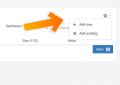
In the top left corner menu, select Add new.
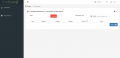
New Dashboard Element

Select Dashboard type element and Machine from where the data should be. And select Create new link: dashboard types
New Dashboard Element

Elements General element values
- Active
- Header
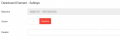
General element values

Filter
- Use Filter
- Filter

Sql filter

Bar chart Element
Photo
Good Bad Element
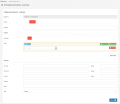
Good bad configuration

| Options | |
|---|---|
| OK text | Text for OK part |
| OK value | Standard value: 1 |
| NOK text | Text for Not OK part |
| NOK value | Standard value: 2 |
| Invalid text | Text for Invalid part |
| Invalid value | Standard value: 3 |
| Percent | Text for percent |
| Date | Text for date |
| Tag | Select list for result tag |
Graph Element
Photo
Machine Overview01 Element
Photo
Pie Chart
Photo
