Difference between revisions of "mosCura:Admin Design"
Jump to navigation
Jump to search
| Line 1: | Line 1: | ||
| − | To start the process of | + | To start the process of creating a shared Report: |
| + | |||
| + | #Click Machine config in the menu | ||
| + | #Click create Report at the bottom of the page | ||
<gallery> | <gallery> | ||
File:Report_machine_config.png | Click Machine config in the menu | File:Report_machine_config.png | Click Machine config in the menu | ||
| − | File:mosCura_Report_Designer_Admin_Handle.png | | + | File:mosCura_Report_Designer_Admin_Handle.png | Click create Report |
</gallery> | </gallery> | ||
| − | When the " | + | |
| + | When the "Create Report" has been clicked, the page with the required info of the Report will open. | ||
<gallery> | <gallery> | ||
File:mosCura_Report_Designer_Admin_EmptyReport.png| New Report | File:mosCura_Report_Designer_Admin_EmptyReport.png| New Report | ||
Revision as of 13:17, 10 September 2020
To start the process of creating a shared Report:
- Click Machine config in the menu
- Click create Report at the bottom of the page

Click Machine config in the menu

Click create Report


When the "Create Report" has been clicked, the page with the required info of the Report will open.
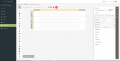
New Report

When you have finished the design of the report you can store the Report in your database.
- To store the Report
- Click the hamburger button.
- Press "Save..." or "Save as..."

Open Menu

Press "Save" or "Save as"


Furthermore, in the Report Designer you can edit an existing Report that is stored in your database.
- To open and edit an existing report:
- Click the hamburger button.
- Press "Open..."
- Select the Report from the List
- Press "Open"
Open Menu

Press "Open..."

Select Report and press "Open"

Selected Report


For more information how to design a report visit Report Tutorial
