Difference between revisions of "mosCura:Recipe Alias Import CSV"
Jump to navigation
Jump to search
| (2 intermediate revisions by the same user not shown) | |||
| Line 1: | Line 1: | ||
| + | In the following example we have used a csv file separated by comma,but there is also the option to import a csv file separated by semicolon. | ||
| + | |||
| + | *In order to be successful the importation of the Alias you have to create a csv file similar to the following picture: | ||
| + | <gallery> | ||
| + | File:MosCura_Recipe_Alias_Import_csv_template.png| CSV File Template | ||
| + | </gallery> | ||
| + | |||
#Press import button. | #Press import button. | ||
#Select your preferences and the file | #Select your preferences and the file | ||
| Line 11: | Line 18: | ||
File:mosCura_Recipe_Alias_Import_xlsx_aliasList.png| Imported Alias list | File:mosCura_Recipe_Alias_Import_xlsx_aliasList.png| Imported Alias list | ||
</gallery> | </gallery> | ||
| + | |||
| + | |||
| + | |||
| + | |||
[[mosCura:Recipe_Alias|Back to Alias]]<br /> | [[mosCura:Recipe_Alias|Back to Alias]]<br /> | ||
Latest revision as of 11:29, 31 October 2019
In the following example we have used a csv file separated by comma,but there is also the option to import a csv file separated by semicolon.
- In order to be successful the importation of the Alias you have to create a csv file similar to the following picture:
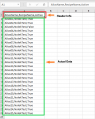
CSV File Template

- Press import button.
- Select your preferences and the file
- Press Import

Press import button
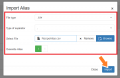
Select your preferences and import.

Import confirmation

Import Process Status

Imported Alias list


