Difference between revisions of "mosCura:Configurator"
| Line 175: | Line 175: | ||
<gallery> | <gallery> | ||
File:mosCura_Configurator_Item_Copy.png|Press "Create Item Copy" | File:mosCura_Configurator_Item_Copy.png|Press "Create Item Copy" | ||
| − | + | File: mosCura_Configurator_Item_CopyInputs.png| Fill in all the inputs and press "Create" | |
| + | File: mosCura_Configurator_Item_CopyCreated.png| Created copies of the Item | ||
</gallery> | </gallery> | ||
Revision as of 11:20, 13 September 2019
Contents
7.1 Overview
mosCura Configurator is a tool that can be used to create communication protocols among different tools in the production cycle.
In the configurator, there are options to create a totally new configuration from scratch and export it into a CSV file, or to import an existing configuration in order to validate and update the existing configuration in the machine.
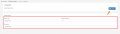
In the picture below is an example of a Configurator with a finished configuration:

7.2 Configuration Setup
Before you proceed reading the process of a new configuration setup, it is recommended to read the Rules of the Configurator.
7.2.1 Configuration Process
The following steps are the process of how to create a new Configuration.
- Create a new Section Group
- Add 1 Data Handler
- Add 1 or multiple Item Groups in the Section Group
- Add 1 or multiple Items in each Item Group
- Export configuration
- Import an existing configuration
7.2.2 mosCura Configurator
In the Configurator page, it is possible to edit or delete the Section Group and create, edit or delete Data Handler, Item Group and Items.
Moreover, there are options to export the configuration or to import an existing configuration.
7.2.3 Section Group
Create
In order to create a new “Section Group”:
- Navigate through the menu on the left side, where the “Source Configurator” is located. Extend the menu, and you will see the option to “Create Section Group”.
- When you have pressed the “Create Section Group”, the page, where you can type in the values of the Section Group, will open.
- Fill in all the inputs and then press “Create” on the top of the right side on the page.
- mosCura will ask to create a Standard Recipe
- Press "Ok" to create or "Cancel" to not create the Standard Recipe.
- If any error occurs during the process of the creation, an alert will show up regarding the error
- If no errors occur, mosCura will redirect to the “Configurator” page, and the newly created Section can be seen in the left menu
- Press "Ok" to create or "Cancel" to not create the Standard Recipe.

Create Section Group
Fill inputs
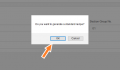
Autogenerate Standard Recipe
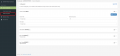
Created Section Group with Standard Recipe


Update
To update the values of the Section Group, you should replace the existing values in the panel with the Section Group, and then press the “Update” button in the top right corner.

Change values and press update

Delete
If you need to delete the Section Group, you can click on the button with a bin icon, which is placed in the top panel in the right corner. When you press the button, a confirmation message will pop up, and it will have two options: to press “OK” in order to continue the process, or “Cancel” to cancel it.

Delete Section
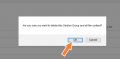
Confirm delete process


7.2.4 Data Handler
In the Data Handler, there are only the options to create and delete the Data Handler, as well as to add a new Item.
Create
- To create a new Data Handler, click on the dropdown button, which is placed at the Section Group panel in the right corner, and then press “+Data Handler”
- When you have clicked the button, a new window will appear with the required inputs. Fill in all the fields and then press “Create”
- When the process is finished, a new panel with the Data Handler and 3 default items will be placed under the Section Group

Press “+Data Handler”
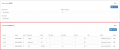
Newly created Data Handler


Create Item Data Handler
- To create a new Item in the Data Handler, extend the dropdown and press "New Item"
- Fill in all the Inputs and press "Create"

Press "New Item"
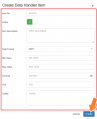
Fill in inputs and press "Create"


Delete
- To delete a Data Handler and all the items inside, you have to extend the dropdown button and press “Delete”
- When you have clicked “Delete”, a confirmation message will pop up; here you should press “OK” to finish the process, or press “Cancel” to cancel it
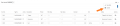
Press Delete
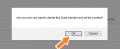
Confirm delete process


7.2.5 Item Group
Create
- To create a new Item Group, click on the dropdown button, which is located in the Section Group panel in the right corner, and press “+Item Group”
- When you have clicked the button, a new window will pop up with the required inputs. Fill in all the fields and press “Create”
- When the process is finished, a new panel with the Item group will be placed under the Data Handler or the Section Group

Press "+Item Group"
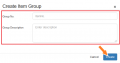
Fill in the inputs and press "Create"


Update
- To update an Item group, click on the dropdown button and press “Edit Item Group”
- When you have clicked the button, a window with the values of the selected Item group will be displayed. Replace the existing values with the new one and press “Update”
- When the process is ready, you will see that the name of the Item Group has changed, and also the Tag No.

Press "Edit Item Group"
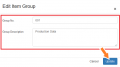
Change the values in the inputs and press "Update"


Delete
- To delete an Item Group and all the Items inside, you have to extend the dropdown button and select “Delete Group”
- When you have pressed “Delete Group”, a confirmation message will be displayed. Press “OK” to continue or “Cancel” to cancel the process

Click "Delete Group"
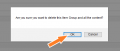
Press "Ok" to confirm the process


Copy
In mosCura Configurator we have added a feature to make the process of creating an Item Group very easy. The feature that helps is the possibility to create a copy of an existing Item Group with all its Items.
- To create a copy of an Item Group, in the selected Item Group extend the dropdown button and select “Copy Item Group”.
- Now that the option has been selected a new window will pop up with the required inputs. Fill in all the fields and press “Create” to continue the process or “Cancel” to stop it.

Press "Copy Item Group"
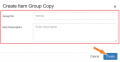
Fill in all the inputs and press "Create"


7.2.6 Items
Create
- To create a new Item either in the Item Group, you have to click the button on the right side in the panel of the Item Group and press “+ New Item”
- When you have clicked the “+ New Item”, a new window will appear with the required fields of the Item. In this window, there is also the option to create a number of copies for the created item
- When the Item is created, it will be located inside the panel of the Item Group

Press "Create new Item"

Fill in inputs and press "Create"

Created Item


Update
To update an existing Item, you can write directly in the panel, where the Item is located, and press “Update” in the right top corner of the panel. Moreover, when a change happened in any of the Item inputs, a vertical colored line will be displayed in the panel, in order to keep track of in which item there are unsaved changes.
- You can update 1 or many Items simultaneously
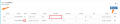
Change the values and press "Update"

Create Copy
In the mosCura Configurator there is also an option to create a number of copies of an existing Item.
- To create the copy, extend the dropdown button at the right side of the Item and press “Create Item Copy”
- When you have clicked the button, a new window will pop up. Now you have to fill in the required inputs and select the number of the copies you want to create

Press "Create Item Copy"

Fill in all the inputs and press "Create"

Created copies of the Item


Delete
- To delete an item, extend the dropdown button on the right side of the Item in the panel where it is located, and press “Delete”
- When you have clicked the button, a confirmation message will be shown
- Press “OK” to continue the process or “Cancel” to cancel it
7.2.7 Export configuration
In this version of the mosCura Configurator, a functionality of exporting a configuration into a CSV file has been added.
- To export the selected configuration, click the left button
 on the top panel in the right corner
 - Afterwards, a new window will be displayed. Now you have to select the type of separator, the delimiter type for the decimal values of the configuration, and if you want the CSV to have Headers, press “Export to CSV”


7.2.8 Import configuration
- In this version of mosCura Configurator, there is also the option to import an existing configuration from a CSV file or a Text file
- To import an existing configuration, you should click the middle button
 on the top panel at the right side
 - When you have clicked the button, a new window will open. Now you have to select the type of the separator, the type of the delimiter, the type of the file, and browse to the location of the file and press “Import”
- If the import process is successful, the imported configuration will replace the existing configuration
- If the configuration contains any errors, the error(s) will be displayed in the importation window, as well as the line numbers of the file where the error(s) have occurred


7.3 Rules
Below are some rules, which we have set in mosCura Configurator, and the user should follow them in order to create a successful configuration:
- Section Group No. must be 2 characters long.
- Item Group No. must be 3 characters long.
- Item No. must be 4 characters long.
- A Section group can have 1 or none Data Handler.
- A Data Handler can have up to three Items.
